

VNC console and first connection over SSH
Once a server is created, the first thing to do is get onto it: make sure everything is working, and configure it "from the inside." This article covers every way to make your first connection to a new ForestsNet Cloud VPS: where to find the IP address and password, how to open the graphical console (VNC) in your account, and how to connect over SSH from your own computer.
What you'll need
- An active ForestsNet Cloud server — already ordered and activated.
- Access to your my.forestsnet.cloud account. For how server management works there, see "Managing your server in the account".
- For SSH: on macOS and Linux the
sshclient is already built in; on Windows 10/11 it's usually available out of the box too — or you can use PuTTY.
Step 1. Find your server's IP address and password
Every server has its own IP address and its own root password. This is not the same as the username and password for your my.forestsnet.cloud account: the root password logs you in to the server itself, not to the account (see "Managing your server in the account" for more about the account).
- Check your email — the server activation email usually lists its IP address and initial password.
- If you don't have the email or lost the details, open the VPS section of your account: the server's IP address is shown right in the list. To change the password, select the server and change the root password under "Access" (the server needs to be running — no reboot needed). Password changes go through the QEMU guest agent: if the change doesn't go through, restore the agent with "System" → "Guest agent" — the server reboots and is unavailable for about a minute.
Step 2. Open the VNC console in your account
The graphical console is the fastest way to get onto your server: no SSH client needed, everything runs right in the browser. It's good both as a first check that the server is responding at all, and as a fallback if SSH isn't reachable for some reason.
- Log in to your my.forestsnet.cloud account and open the VPS section — see "Managing your server in the account".
- Select your server in the list.
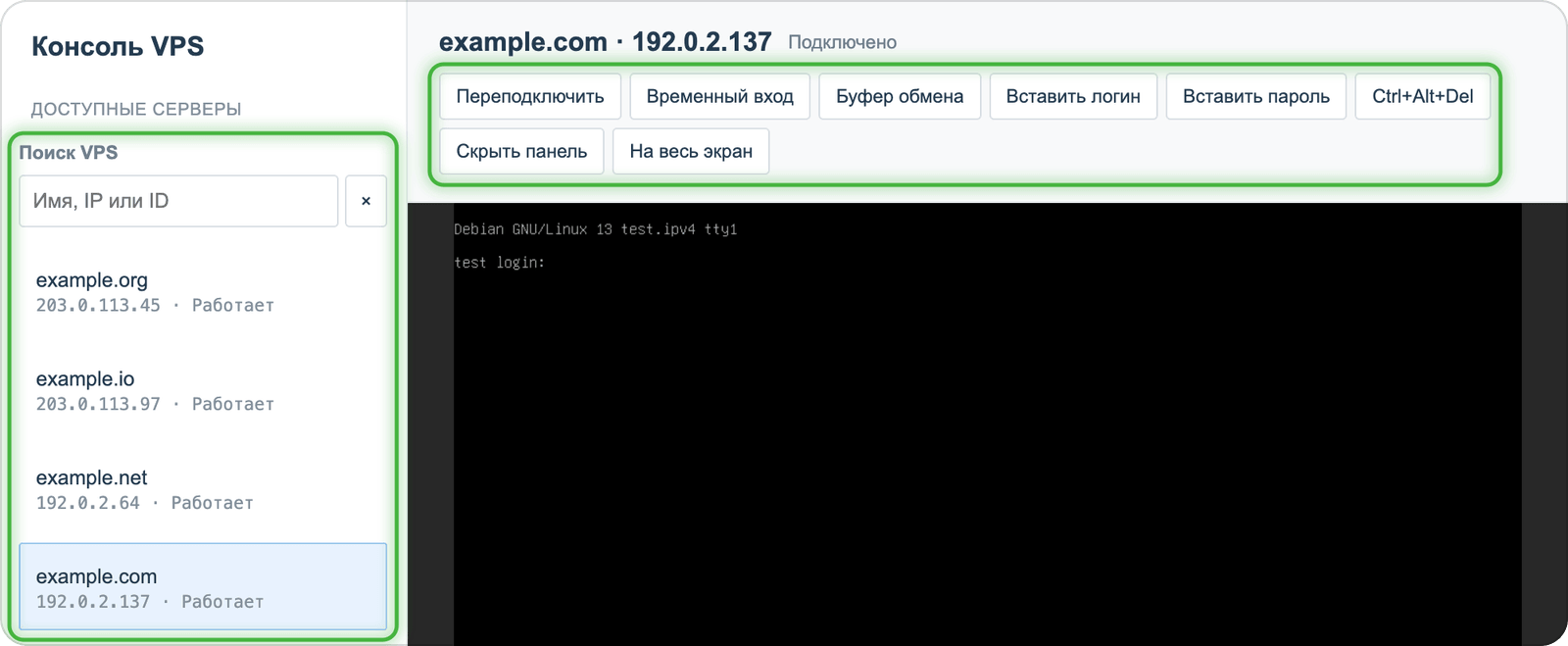
- Open "Access" → "Console" above the list.
- The server's screen opens right in your browser.
- Log in with the credentials from Step 1: the
rootlogin and the password. You don't have to type them by hand — the "Insert username" and "Insert password" buttons enter them for you (the username is picked based on the OS, the password comes from your service details), and you just press Enter.
Step 3. Connect over SSH
SSH is the main way you'll work with a Linux server day to day: faster than the VNC console, and it supports clipboard sharing and file transfer. Connect with a password first, then set up SSH key login — it's more convenient and more secure.
With a password
- Open a terminal: on macOS/Linux — the built-in Terminal app; on Windows 10/11 — PowerShell or Windows Terminal.
- Connect, substituting your server's IP address:
ssh [email protected]- On the first connection, SSH will ask about the server's key fingerprint — that's normal, answer
yes. - Enter the root password from Step 1 (the characters won't be shown — that's expected).
After logging in, the terminal prompt changes to something like root@vps:~# — you're inside the server.
With an SSH key
A key is more secure than a password and saves you from typing a password on every connection. Here's how, using the current Ed25519 algorithm.
- Generate a key pair on your own computer (not on the server):
ssh-keygen -t ed25519 -C "[email protected]"- Copy the public key to the server:
ssh-copy-id -i ~/.ssh/id_ed25519.pub [email protected]- If
ssh-copy-idisn't available (for example, in Windows PowerShell without the OpenSSH utilities), do the same thing manually:
cat ~/.ssh/id_ed25519.pub | ssh [email protected] "mkdir -p ~/.ssh && chmod 700 ~/.ssh && cat >> ~/.ssh/authorized_keys && chmod 600 ~/.ssh/authorized_keys"- Check it: the command
ssh [email protected]should now log you in without asking for a password.
For the path and passphrase prompts in step 1, you can just press Enter — the key is saved by default to ~/.ssh/id_ed25519 (private) and ~/.ssh/id_ed25519.pub (public); an empty passphrase means key-based login without an extra password on the key itself.
Once key login is confirmed, you can disable password login: add (or uncomment and change) this line in /etc/ssh/sshd_config on the server:
PasswordAuthentication noand restart the service:
# Ubuntu/Debian
systemctl restart ssh

# AlmaLinux/Rocky Linux
systemctl restart sshdufw allow OpenSSH
ufw enableSee "Setting up a firewall (ufw)" for more.
What's next
Next, you'll probably want to protect the server with a firewall — see "Setting up a firewall (ufw)" — and see what else you can install in one click: several popular pieces of software install from your account through ready-made scripts, see "Ready-made scripts: what you can install in one click".
