

Managing your server in the account
Everything you need to work with your VPS — power and reboots, the console, OS reinstall, ready-made scripts, IP addresses and statistics — is in your account at my.forestsnet.cloud. There is no separate panel and no separate password: sign in to the account and select your server.
Finding your server
- Sign in to your account at my.forestsnet.cloud.
- Open the VPS section.
- Select the server in the list — the control buttons above the list become active.
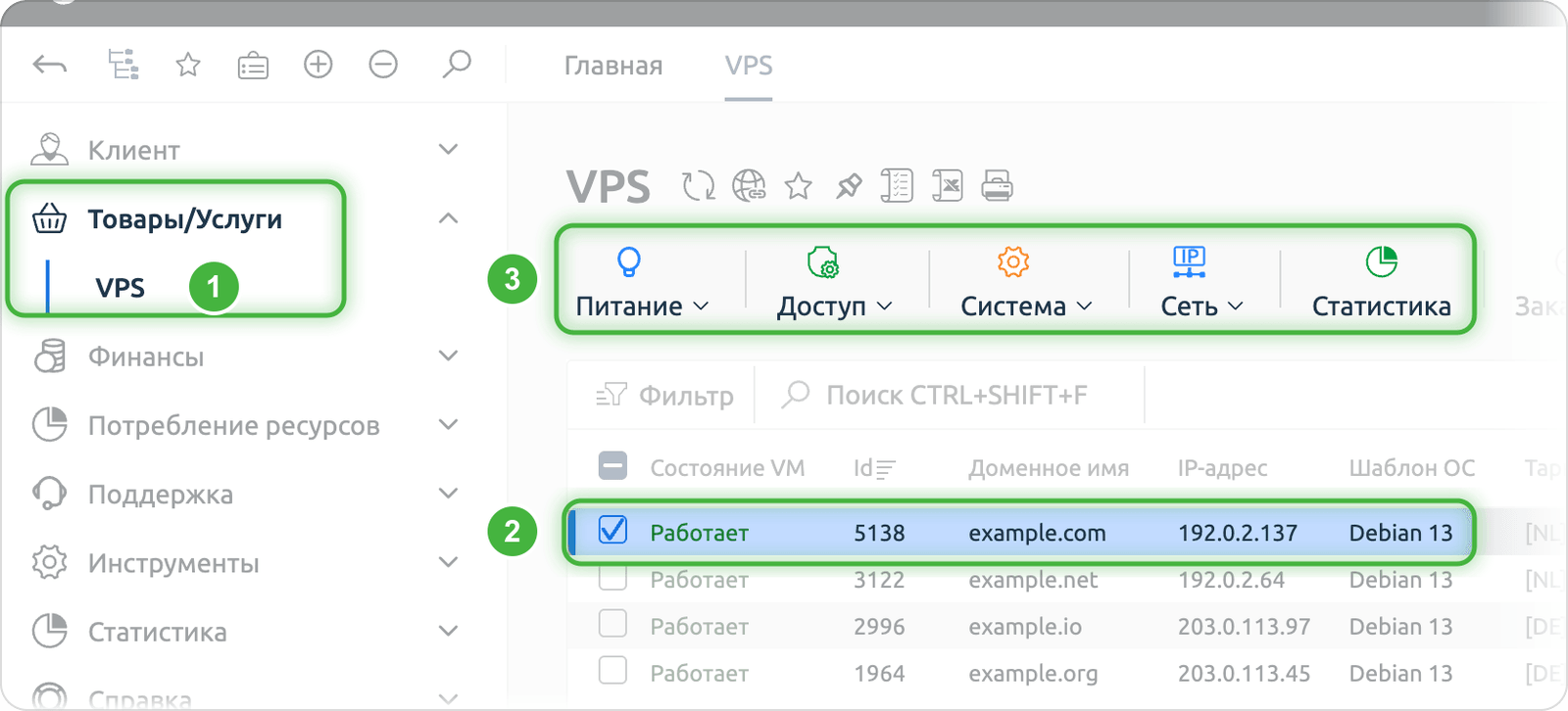
The status column shows whether the server is running right now and updates by itself, so there is no need to reload the page.
Where things are
The buttons above the list are grouped:
- Power — turn the server on and off, reboot it, and Hard reset for when the server hangs and ignores a normal reboot.
- Access — root password change, the console and SSH keys.
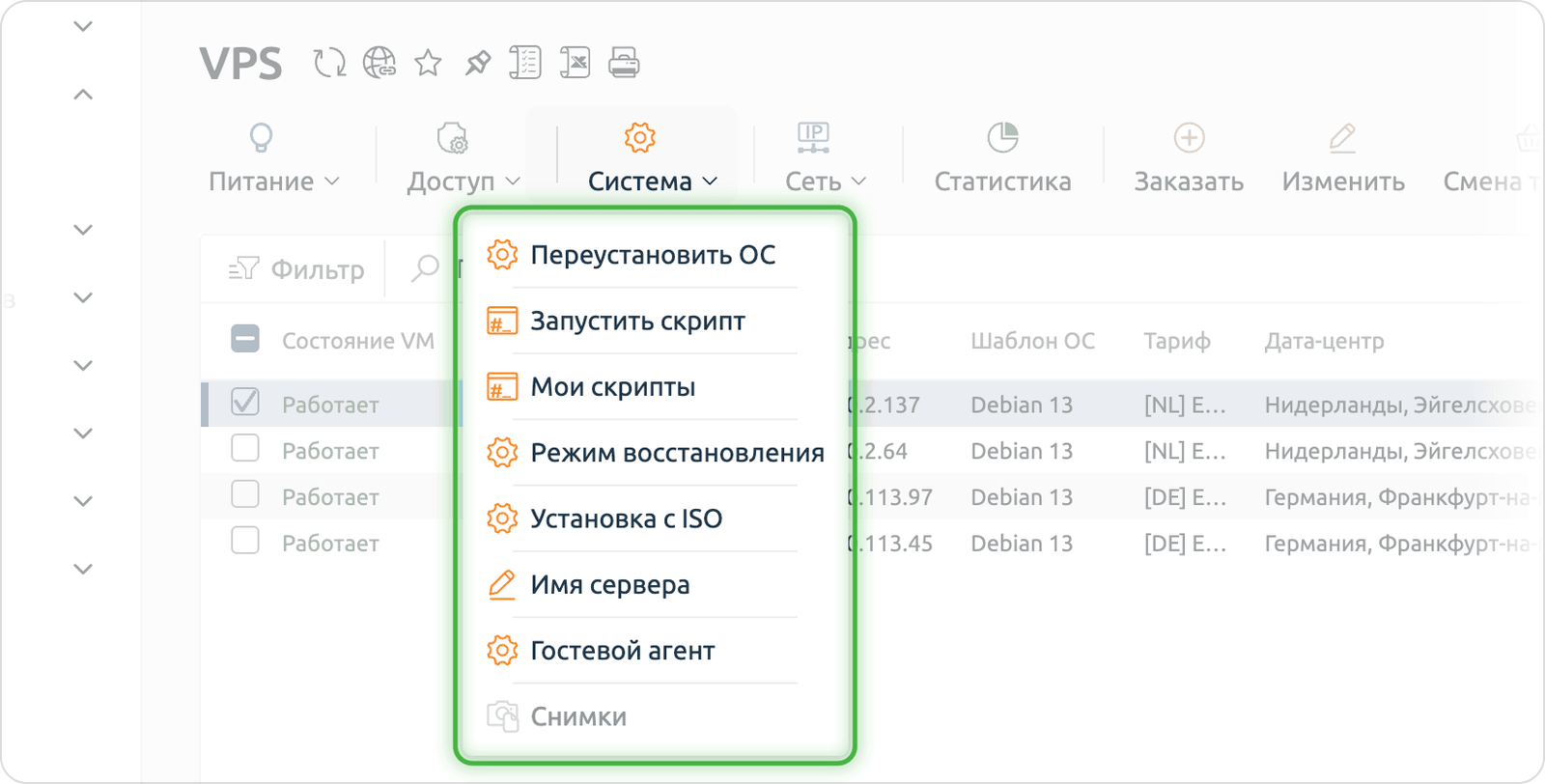
- System — Reinstall OS, Run script, My scripts, Rescue mode, Boot ISO, Server name and Guest agent. The Snapshots button is inactive: our VPS do not have snapshots.
- Network — IP addresses (IPv6 is connected there too), Reverse DNS for PTR records and Replace IP address.
- Statistics — load and traffic charts.
- History — the service change history, Operation log and All my operations.
Next to the groups are the plan change button, for when the server needs more resources, and the renewal button.
Console
The console opens right from the account, in a separate browser tab: select the server and open Access → Console. It is the server’s own screen, as if a monitor were plugged in, so the console works even when SSH is unavailable or the server’s network is broken.
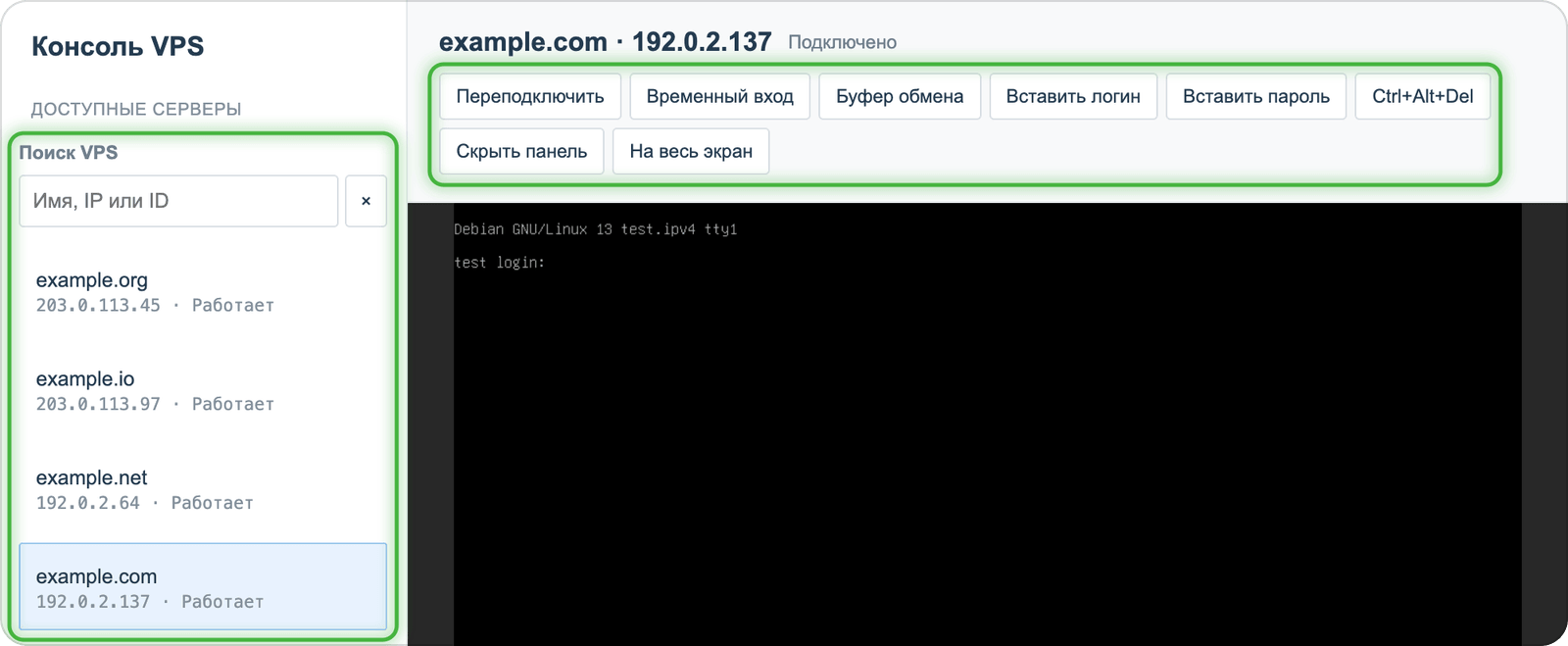
What the console can do:
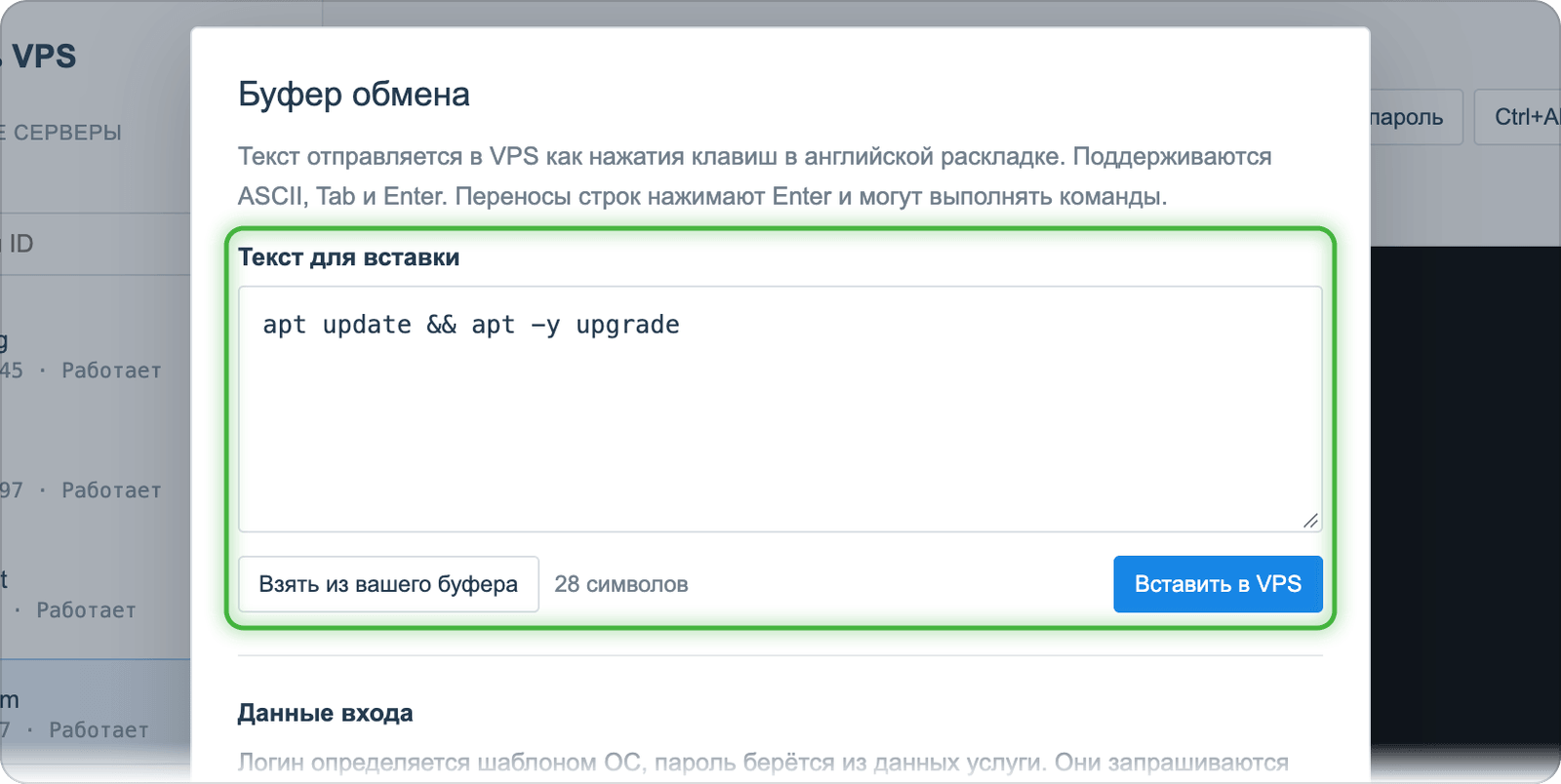
- Paste text. Press Clipboard, paste your text into the field or press Read your clipboard, check it and press Insert into VPS. The console types the text itself, as if from a keyboard: Latin letters, digits, symbols, Tab and Enter, up to 8 thousand characters. Cyrillic cannot be sent this way.
- Username and password in one click. Insert username and Insert password enter the server credentials stored in the account. The console does not press Enter, you do.
- Login details on your side. In the same window, Copy username and Copy password put the server’s details into your computer’s clipboard. If the system on the server has passed text to the clipboard, take it with Copy to your clipboard.
- Ctrl+Alt+Del has its own button, so your computer does not intercept the shortcut.
- All your servers at hand. Search VPS lets you switch to another server without closing the tab.
- Full screen and compact mode. Full screen expands the console, Hide controls removes everything else.
Temporary access without a password
If the root password is lost or password login is turned off, press Temporary access in the console:
- The account creates a temporary user with sudo rights on the server, and the console signs in as that user right away.
- Get root with
sudo -iand do what you need — for example, set a new password withpasswd. - Press End session or close the console — the temporary user is deleted automatically. Either way, the session lasts no longer than an hour.
Your root password stays the same. Temporary access works on Linux with systemd and a running QEMU guest agent. If something is missing, the console will tell you, and the regular login stays available.
Password and SSH keys
- Root password change is under Access. The new password is stored in the account, and Insert password in the console will enter it from then on. A working guest agent is required, see below.
- SSH keys are under Access → SSH keys. Add your public key or press Generate key pair: the private key can be downloaded once, right after it is created, and we do not keep it. Install on VPS adds the key to a running server without a reinstall and can turn off password login at the same time.
How to switch the server to key-only login is covered in How to harden SSH on your VPS.
Reinstalling the OS
System → Reinstall OS: choose the system, set a new root password, optionally pick an SSH key and turn off password login. To confirm, enter the server’s primary IP address, tick the confirmation box and run the action.
Step by step — in Reinstalling the OS and choosing a template.
Ready-made scripts
System → Run script installs ready-made software on a running server without a reinstall: the LEMP and LAMP web stacks, Django, Zabbix, WireGuard, OpenVPN and more. The list depends on the server’s OS, the script’s description is shown when you pick it, and if the script needs data, such as a password, the form asks for it. You can save your own scripts in My scripts and run them the same way.
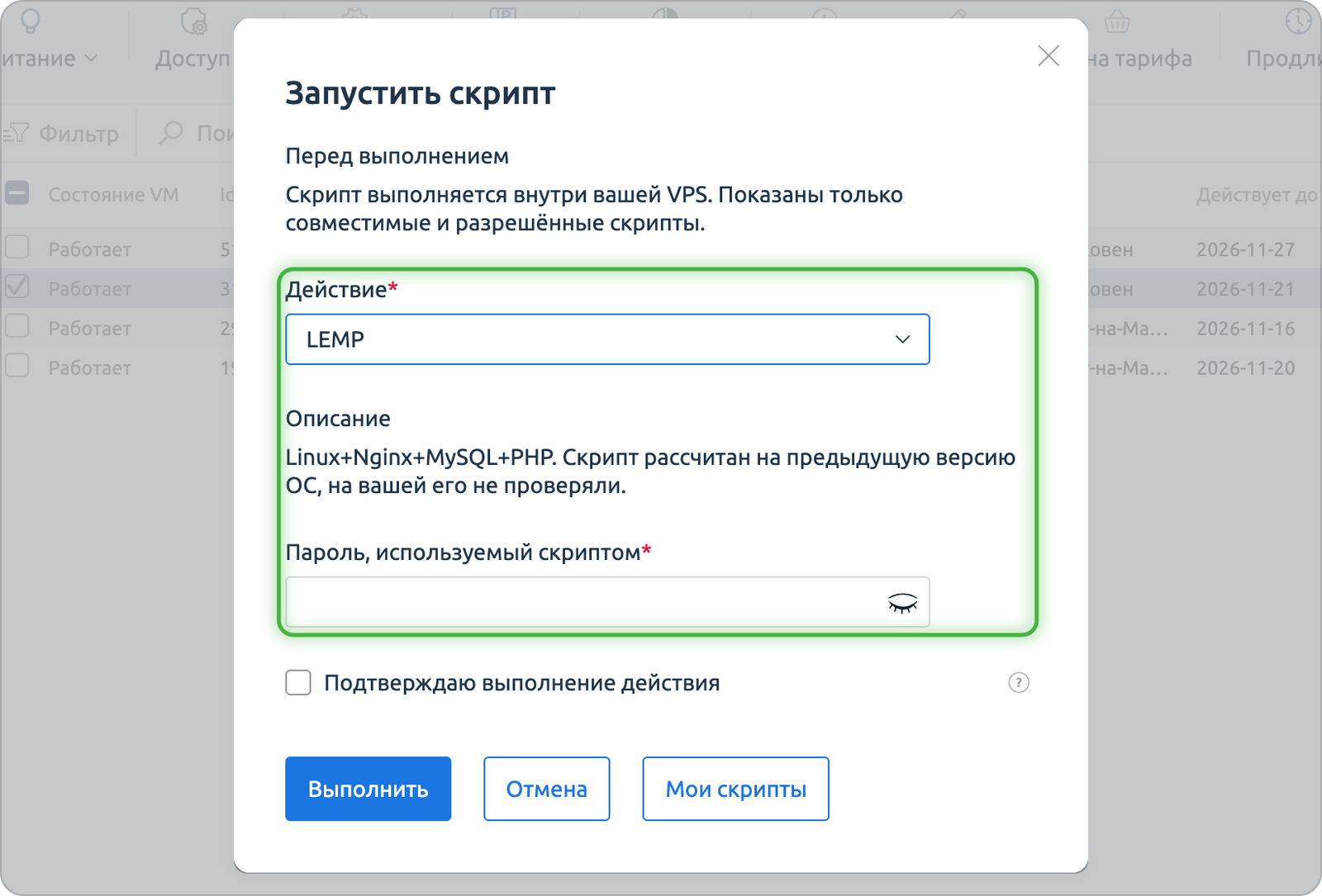
The full catalogue with notes on each script is in Ready-made scripts.
IP addresses
Network → IP addresses lists all of the server’s addresses: IPv4, plus the IPv6 network if one is connected. The buttons above the list:
- The order button — an additional IPv4 address for the server.
- Replace IP address — the server gets a new IPv4 address instead of the selected one. A replacement costs €3 and is charged to your balance, with no limit on the number of replacements. The old address goes into quarantine: it is not given to other customers until a check shows it is clean. Connections on the old address will drop, so update DNS records and application settings yourself. If the address was already blocked in Russia when you bought it, contact support and we will replace it for free. If it was blocked later, the replacement is paid.
- Make primary — if the server has several addresses, any of them can be made the service’s primary address for free.
- Reverse DNS — the reverse DNS (PTR) record for the selected address, IPv4 or IPv6.
- IPv6 — connecting, replacing and disconnecting the IPv6 network, covered in the next section.
IPv6
Any server can get an IPv6 /64 network for free. It is not assigned when you order a server, you connect it once the server exists:
- Open Network → IP addresses.
- Click IPv6 → Connect IPv6.
- Choose the network’s location and confirm. A server in the Netherlands can get a Dutch or a Russian network, a server in Germany gets a German one. The Russian network is registered with RIPE as located in Russia.
Connecting takes about a minute, and you can follow it in the operation log. The network then shows up in the list as a separate row with its location, and within another minute the address starts answering from outside. There is nothing to configure: the first address of the network and the gateway are already set up in the system. If the list shows the network 2001:db8:c:61::/64, the server’s address is 2001:db8:c:61::1.
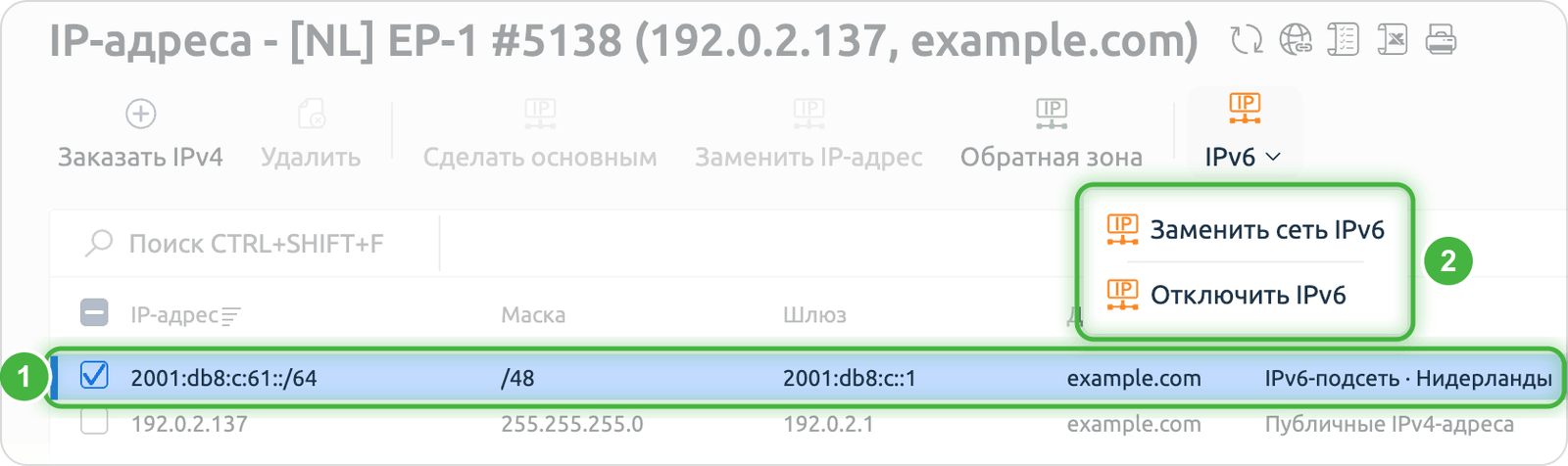
Select the IPv6 row and the IPv6 group offers these actions:
- Replace IPv6 network — the server gets a different /64 network, in the same or another location. The replacement is free. The previous network will not come back to the server, and while the replacement runs, for about a minute, IPv6 does not work on the server. Put the new address into your DNS records and application settings.
- Disconnect IPv6 — the network is removed from the server.
The reverse DNS record for IPv6 is set with the same Reverse DNS button on the network row. The record goes on the first address of the network, the one configured on the server.
You can add more addresses from your /64 in the system yourself. The router only learns such an address once the server reaches the gateway from it, and forgets it again after about half an hour without traffic. So after adding one run this on the server:
ip -6 neigh flush to 2001:db8:c::1 && ping -6 -c 1 -I 2001:db8:c:61::2 2001:db8:c::1Here 2001:db8:c::1 is the gateway from the IPv6 row in the list and 2001:db8:c:61::2 is the address you added. The first command drops the cached gateway entry, so the server contacts the gateway again, this time from the new address. A plain outbound ping from the new address does not do it: while the gateway entry is fresh, the server does not contact the gateway at all.
To keep the address answering after idle periods, repeat the command on a schedule, for example every 5 minutes. Save these two lines to /etc/cron.d/ipv6-extra:
PATH=/usr/sbin:/usr/bin:/sbin:/bin
*/5 * * * * root ip -6 neigh flush to 2001:db8:c::1 && ping -6 -c 1 -I 2001:db8:c:61::2 2001:db8:c::1 >/dev/null 2>&1
We keep the first address of the network, the one set up on the server when IPv6 is connected, known to the router ourselves, so it needs nothing.
Rescue mode and booting from ISO
- Rescue mode boots the server into a separate recovery system. From there you can check the disk, fix configuration files or reset a password when the main OS does not boot. When you are done, turn the mode off in the same form and the server boots from its disk again.
- Boot ISO attaches an image from our catalogue and boots the server from it, for example to install a system by hand. Switching back to the disk is done in the same place.
Both actions reboot the server.
Guest agent
The QEMU guest agent is a service inside the OS that the account uses to change the password, run scripts, install SSH keys and open temporary access. If these actions stop working, restore the agent: System → Guest agent. The server reboots and is unavailable for about a minute.
Statistics
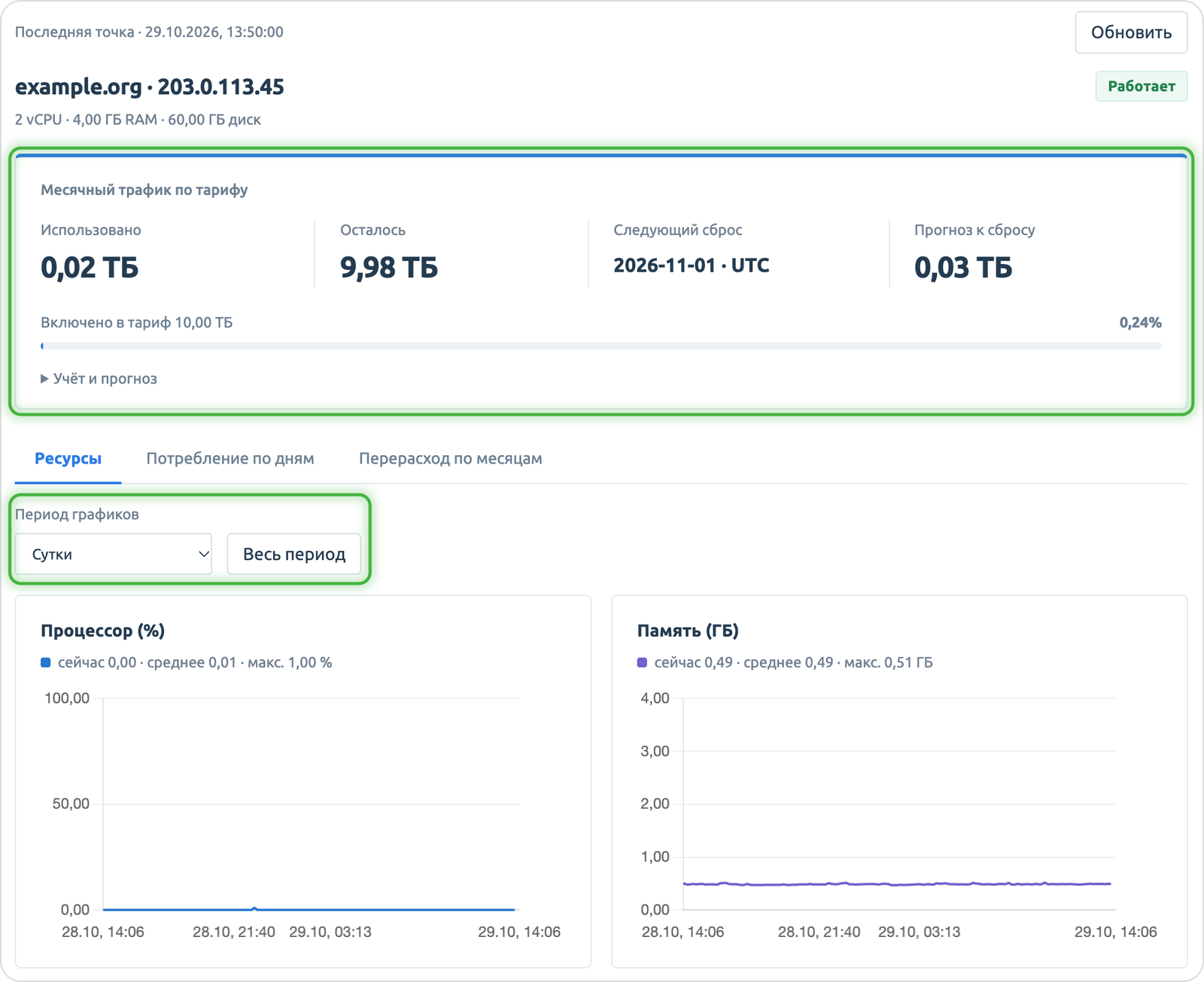
The Statistics button shows CPU, memory, disk, IOPS and traffic charts for any period from an hour to a year. For traffic you can see how much was used this month, how much is left, when the counter resets and the forecast for the end of the month. The usage-by-day and overage-by-month tabs show daily usage and the traffic over the plan for each month.
Operation log
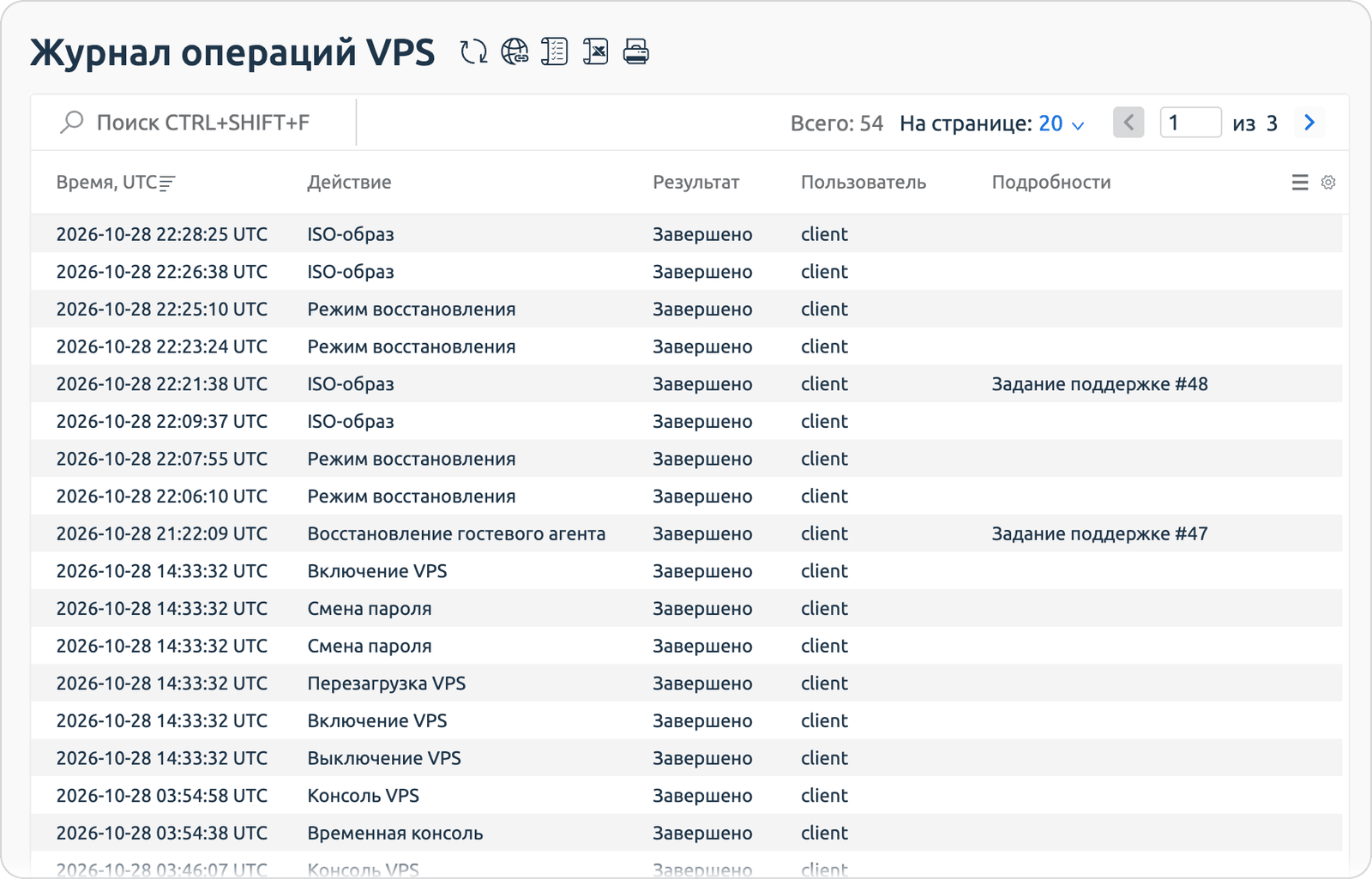
History → Operation log shows what was done with the server, when and how it ended, and All my operations does the same for all your servers. If an operation fails, support is notified automatically.
If something does not work
If an action you need is missing from the account or an operation did not finish, write to support and we will help manually. For the first connection to the server, see VNC console and first connection over SSH.
