

Reinstalling the OS and choosing a template
Reinstalling the OS in your my.forestsnet.cloud account is how you put a clean system template on your VPS — Ubuntu, Debian, AlmaLinux, Rocky Linux, and others — with a new root password and, optionally, an SSH key right away. This article covers choosing a template, setting the password and key, installing a ready-made script once the new system is up, and why you must back up anything important before you start: reinstalling wipes the server's entire disk, and there's no undo.
What you'll need
- Access to your my.forestsnet.cloud account — see the "Managing your server in the account" article for how server management works there.
- A decision on which distro and version you need (for example, Ubuntu 22.04/24.04, Debian 11/12, AlmaLinux 8/9, Rocky Linux 8/9 — plus other available templates), and whether you'll want a ready-made script installed after the reinstall — see the "Ready-made scripts: what you can install in one click" article for the catalog.
- A few spare minutes: the server is unavailable while the reinstall is running.
Before you reinstall: back up anything important
Save what you need beforehand: copy the files and database dumps you need to another server or your own computer (scp, rsync, and the like) — before the reinstall, not after.
Step 1. Open the "Reinstall OS" operation
- Log in to your my.forestsnet.cloud account and open the VPS section — see the "Managing your server in the account" article for details.
- Select your server in the list.
- In the "System" button group above the list, choose "Reinstall OS".
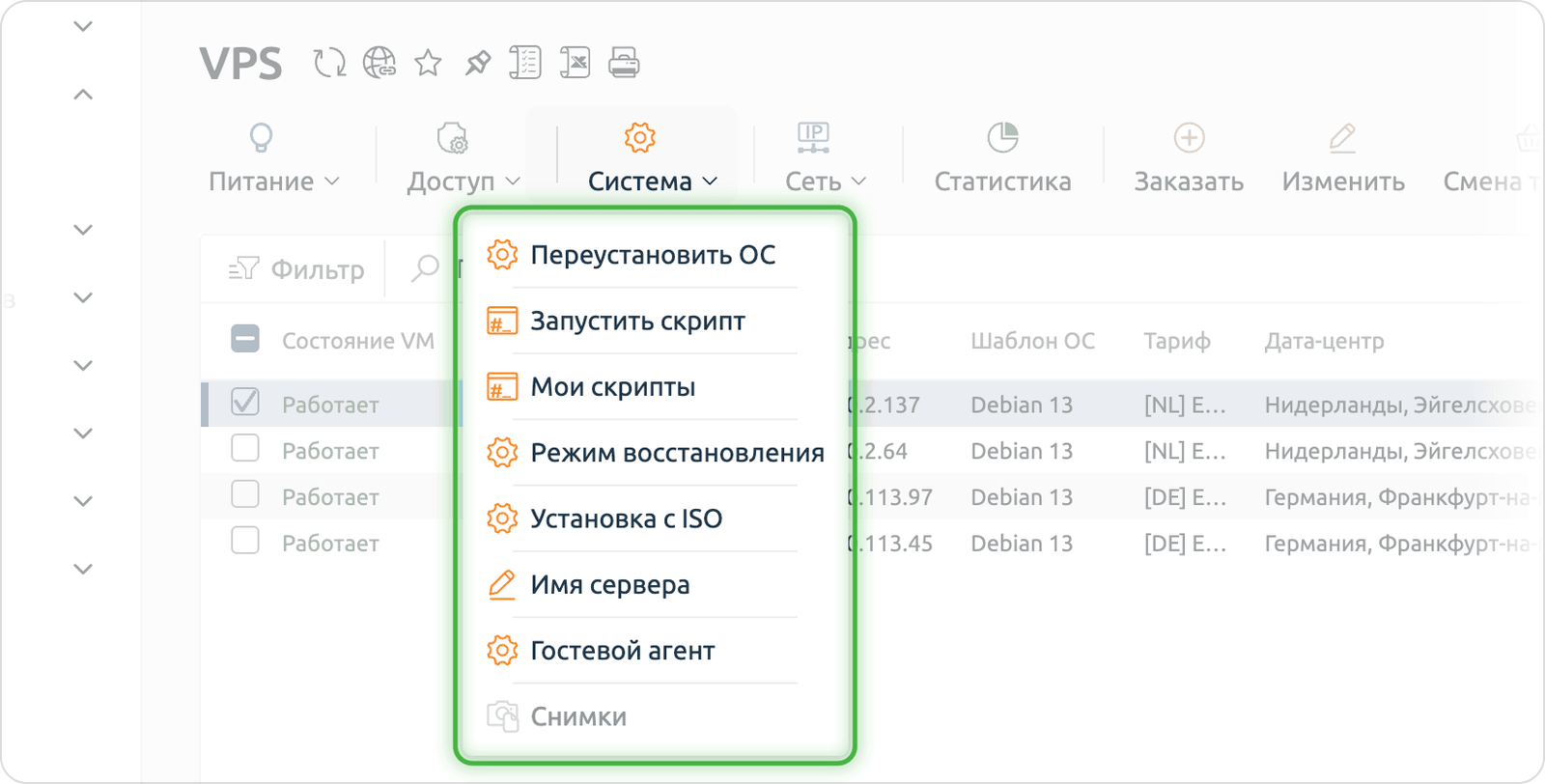
Step 2. Choose an OS template
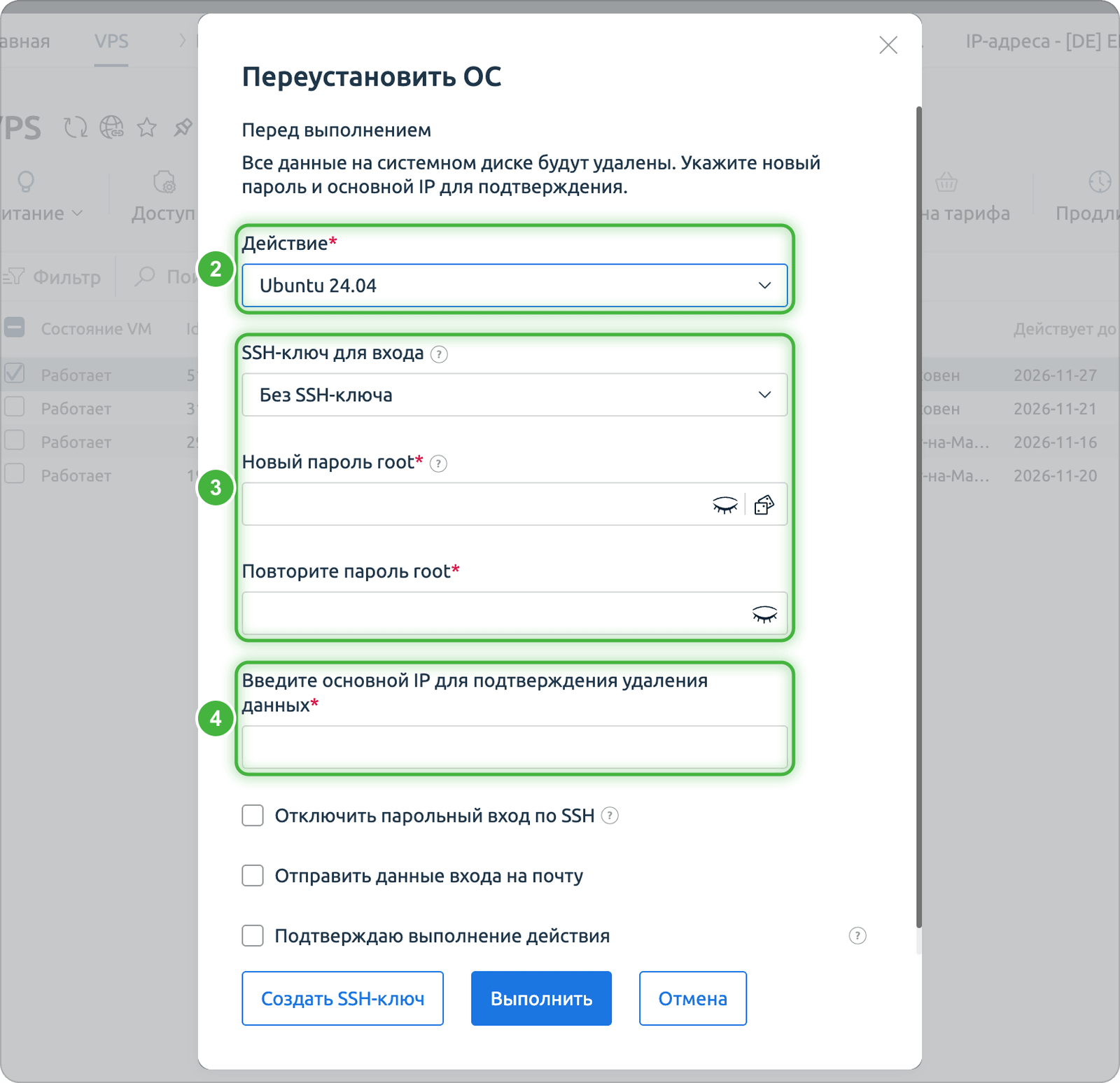
In the reinstall form, pick the operating system you need — distro and version — in the first drop-down list. The list currently includes:
- Ubuntu 20.04, 22.04, 24.04 and 26.04
- Debian 11, 12 and 13
- AlmaLinux 8, 9 and 10
- Rocky Linux 8, 9 and 10
- Oracle Linux 8, 9 and 10
- CentOS Stream 9 and 10
- FreeBSD 13, 14 and 15, including ZFS variants
Step 3. Set the root password and SSH key
- Enter the new root password and repeat it in the second field.
- Optionally, pick an SSH key for login, or create a new one right there. The private key of a new pair can be downloaded only once, right after it's created, and we don't keep a copy — save it on your side.
- If you've picked a key, you can also turn on the option that disables password login over SSH — then SSH will only let you in with the key.
Step 4. Confirm the reinstall
To confirm, enter the server's primary IP address — it's shown in the VPS list — tick the confirmation box and run the action. The whole process usually takes a few minutes, but the exact time depends on the OS template and how busy the node is. You can check the operation's status under "History" → "Operation log". Don't power off or reboot the server manually until the reinstall has finished.
Step 5. Connect over SSH and check the server
- Once the reinstall finishes, connect to the server:
ssh root@<server_ip>and enter the password from step 3. If you picked an SSH key there, log in with it instead: ssh -i <path_to_key> root@<server_ip>.
- If SSH says "Host key verification failed" — that's expected: the server now has a new host key. Remove the old entry and connect again:
ssh-keygen -R <server_ip>Step 6. Install a ready-made script (optional)
If the server needs ready-made software right away, you can install it from your account with a ready-made script. Scripts aren't picked during the reinstall — you run one separately once the new system is installed.
- Select the server in the VPS list and click "System" → "Run script". The script gets the server ready for work: it installs the software you need and sets up configuration files.
- Pick a ready-made script from the catalog — for example, WireGuard, OpenVPN, LAMP, LEMP, Django, Zabbix, Tomcat, Nagios (the full list is in the "Ready-made scripts: what you can install in one click" article). The script's description appears below your selection. If nothing fits, set up the software you need manually.
Scripts run through the QEMU guest agent. If a script won't start, restore the agent with "System" → "Guest agent" — the server reboots and is unavailable for about a minute.
Once the script has finished, check its result separately: its port, web interface, or credentials file — see the ready-made scripts article for details on each one.
What's next
From here, it's the usual setup for a new server: update packages, create a separate sudo user instead of always working as root, and install whatever software you need (via a ready-made script or manually). For the full script catalog, see the "Ready-made scripts: what you can install in one click" article. If the template or script you need isn't available, contact ForestsNet Cloud support.
